cPanel is a great tool for managing your websites, but only if you can actually access it! This tutorial discusses the multiple ways to login to cPanel: via AMP and via multiple direct login URLs. We’ll also cover common reasons why you may have trouble logging in.
- Access cPanel from within AMP
- Login to cPanel through your browser address bar
- Login to cPanel with WHM
- Troubleshooting cPanel Login Issues
Access cPanel from within AMP
Accessing cPanel from within AMP is a very straightforward process:
- Login to AMP.
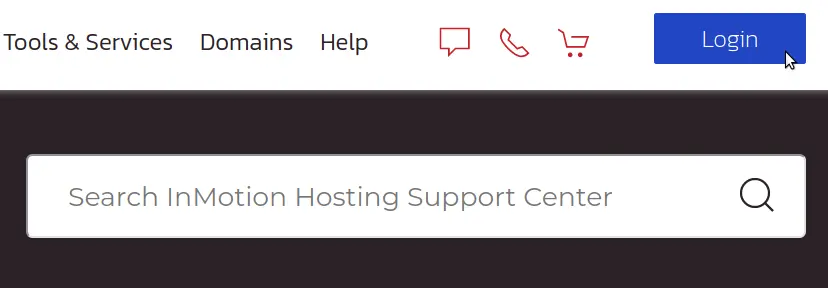
- Under your account name, click the cPanel button. You will then be redirected and automatically logged into cPanel.
Login to cPanel through your browser address bar
There are many different URLs you can use to login to cPanel directly.
Login by Adding ‘/cpanel’ to the End of your Domain
- Visit the following URL to get to your cPanel login:
example.com/cpanel
Note! Replace the term example.com with your actual domain name.
- Type in your cPanel username and password. Your cPanel Username can be found in your technical details in AMP. If you do not know your password, you can reset it in AMP.
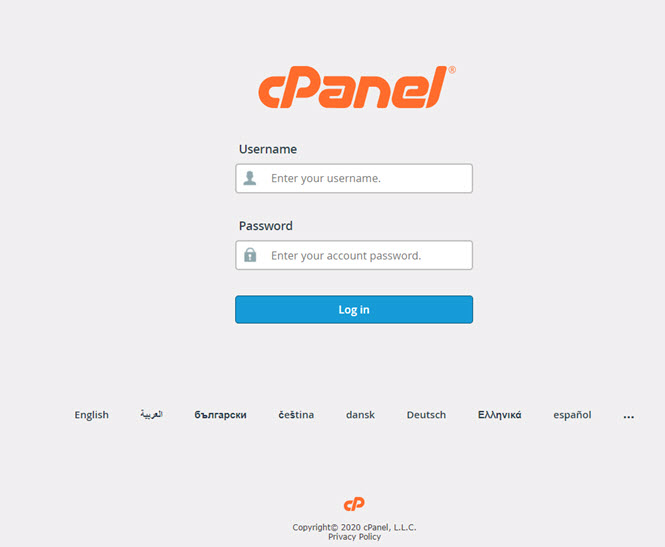
Login by Adding ‘cpanel.’ to the Start of your Domain
- Visit the following URL to get to your cPanel login:
cpanel.example.com
Note! Be sure to replace example.com with your actual domain name.
- Type in your cPanel username and password. Your cPanel Username can be found in your technical details in AMP. If you do not know your password, you can reset it by following these instructions.
Login by Adding the cPanel Port to the End of your Domain
- Visit the following URL to get to your cPanel login:
example.com:2083
Note! Be sure to replace example.com with your actual domain name.
- Type in your cPanel username and password. Your cPanel Username can be found in your technical details in AMP. If you do not know your password, you can reset it by following these instructions.
Login to cPanel using your Server name
You can use either of the above three methods with your Server Name instead of your domain name. This is particularly useful if your domain is still pointed to a different server, or if you have edited your DNS. Please refer to this guide on finding your server name if you are not sure what it is. This will usually look like one of the following examples, just remember to replace ‘secure###‘ with your actual server name.
secure###.inmotionhosting.com/cpanelcpanel.secure###.inmotionhosting.comsecure###.inmotionhosting.com:2083
Login to cPanel with WHM
If you are on a plan that provides WHM access, you can access cPanel directly from WHM.
- Login to your WHM.
- Click on the Account Information category in the left-side menu pane.
- Click on the List Accounts option.
- A list of the cPanels owned by the WHM user will appear. To access one, simply click the cPanel icon.
Now you should be able to see the cPanel just as if you had logged in as the client or cPanel user.
Troubleshooting cPanel Login Issues
I want to reset my cPanel password
To reset your password, please see our tutorial on resetting your cPanel password using AMP.
I am not prompted to login with a Username and Password when attempting to login
If you are not prompted for a username / password when visiting example.com/cpanel, your domain name may have been just registered and isn’t working yet due to propagation, your domain may not be pointing to our servers, or you’re using an internet connection in which the cPanel ports (2082 / 2083) are blocked. Usually trying one of the following will resolve these issues:
- Use cpanel.example.com instead of example.com/cpanel.(This uses the cPanel proxy, which accesses cPanel over the standard port 80 vs. 2082 / 2083)
- Use your temporary cPanel URL, such as biz###.inmotionhosting.com/cpanel.
I am entering a username and password, but they are not being accepted
If your username and password are not being accepted when logging into cPanel, it could be one of these issues:
- Make sure you are using the correct cPanel URL.
(Refer to the directions above under ‘I am not prompted for a username and password‘) - Make sure your username is entered all lower case, and your password is case-sensitive.
(For example, password is different from PassWord) - You are using the incorrect password.